Blog post
Protect your account with multi-factor authentication

What you need to know: You’ll soon notice a change when you sign into Microsoft Advertising. You’ll be asked to provide a second form of identification that matches contact information that you’ve included in your Microsoft account profile.
What you need to do: It’s a good idea to check your Microsoft account settings now to ensure that your contact information is updated. This will help you prepare for the rollout of MFA to all users over the coming months.
When this feature is introduced, we’ll ask you for two things upon sign in:
- Your password
- A security code
Below you’ll find the steps to complete the MFA process.
Step 1. You’ll be required to enter your password:
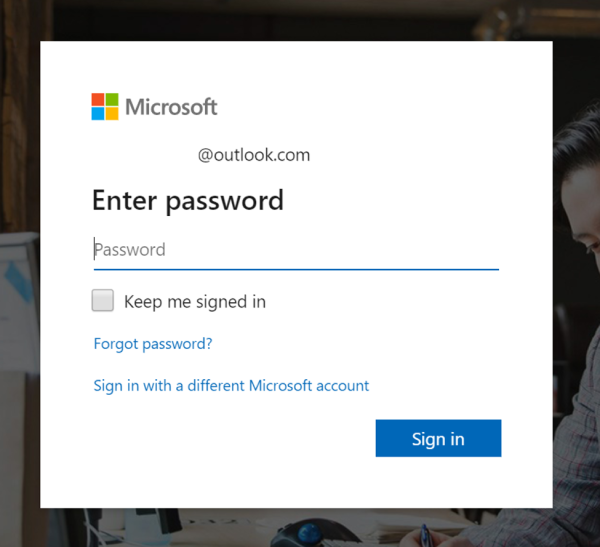
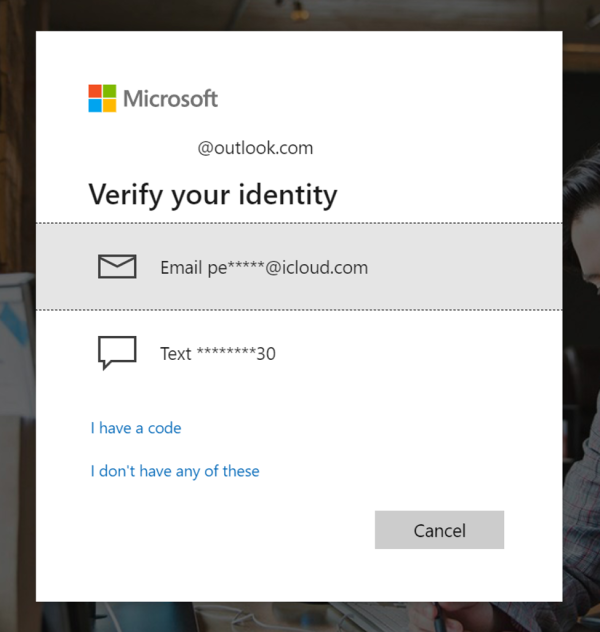
Step 2. (If you have access to your security info.) After you enter your password, you’ll be prompted to verify your identity. To do that, click on the horizontal gray bar displaying the phone number or email address you have on file:
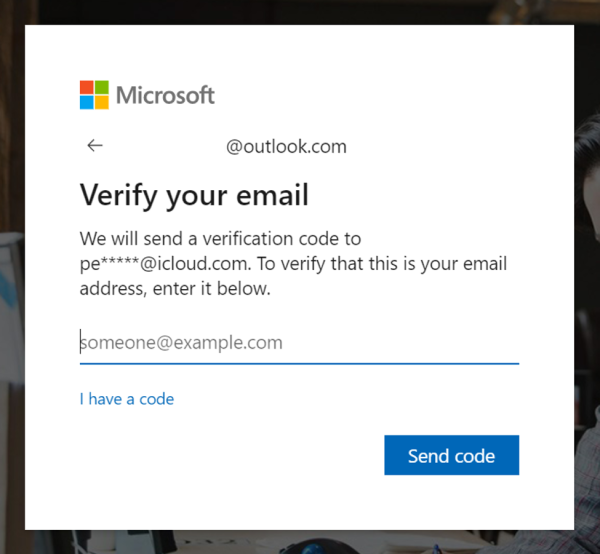
Step 2a. If you clicked on the email address, you'll be asked to verify it by entering the full email address:
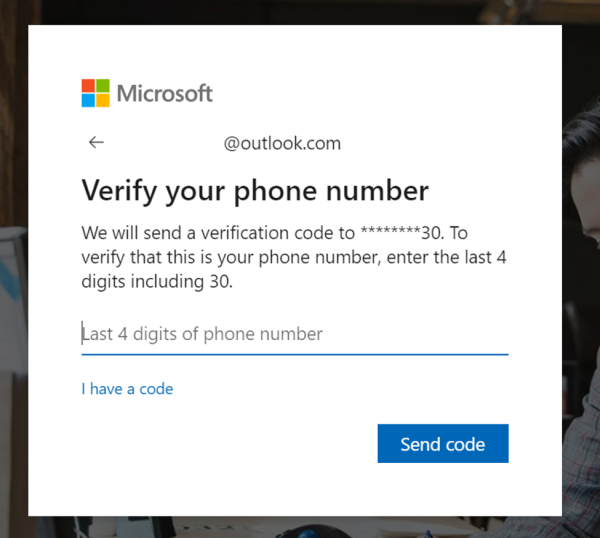
Step 2b. If you clicked on the phone number, you’ll be asked to verify the last 4 digits of the number:
Step 3. A code will be sent to your email address or phone number. To complete the process, enter the code in the following page:
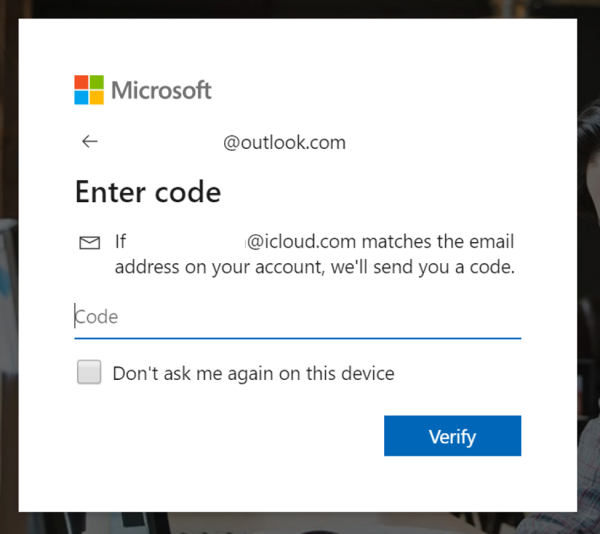
After entering the code, you’ll be taken to the Microsoft Adverting page you were trying to access.
Step 2. (If you don’t have access to your security info.) If you don’t have access to the security information you have on file, click I don’t have any of these and we’ll take you through the process of recovering your security information:
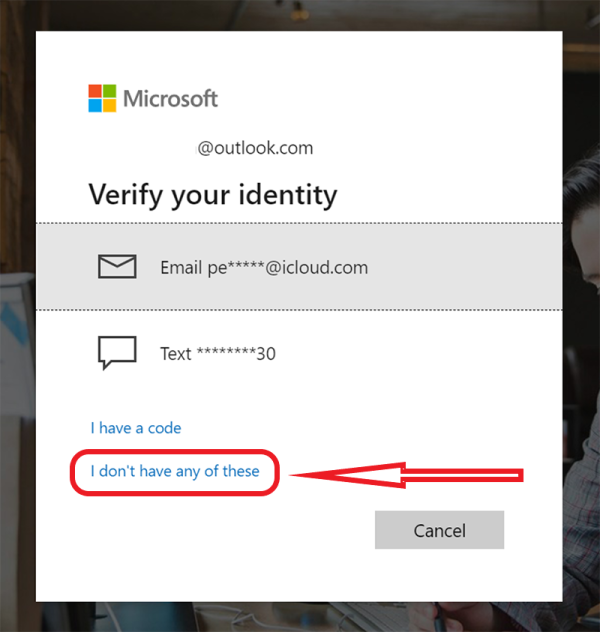
Note: We can also send the security code to an authenticator app on your smartphone. The Microsoft Authenticator app is recommended as the preferred MFA mobile option.
For more information on security best practices, you can go here: How to help keep your Microsoft account safe and secure. To learn more about what else Microsoft Advertising is doing to help protect your account, read about work accounts which are now in open beta here: Work accounts: Better security and control for your business.
Please keep the feedback coming
We’re grateful for your feedback, so please keep it coming! For any questions or feedback regarding MFA, please reach out to your Microsoft Advertising account manager or contact support. You can also ping us on Twitter, suggest a feature on the Microsoft Advertising Feature Suggestions Forum, or send an email to advertising-feedback@microsoft.com.